
Download Fossi – Free Fax Interface for Mac, Secure, Easy & Compatible
What Is Fossi and Why It Matters for Mac Users
Fossi is a lightweight, completely free fax interface built specifically for macOS. In a world where most online fax services lock you behind subscription walls, Fossi breaks the mold by providing an open‑source‑style front‑end that simply links your Mac to a range of major fax‑sending accounts such as eFax, Sipgate, and many others. The idea behind Fossi is straightforward: you should not have to pay for the software that lets you compose and dispatch a fax; you only pay for the underlying fax service you choose to use. This philosophy makes Fossi an attractive option for anyone who needs occasional fax capability without the overhead of a dedicated, paid application.
For owners of older pre‑Intel Macs that still contain a built‑in modem, Fossi can also work directly with the hardware modem, allowing you to send faxes over the telephone line just as you would with a traditional fax machine. This dual‑mode capability (online accounts + hardware modem) is especially valuable for professionals who maintain legacy equipment or who operate in environments with strict data‑privacy policies that require on‑premise transmission.
Beyond its cost‑free nature, Fossi shines because of its simplicity. The interface is divided into two clear tabs—General and Accounts—so you never feel lost in a sea of options. In the General tab you enter the destination country code, phone number, and attach any documents you wish to fax. In the Accounts tab you add or remove online fax providers with a single click, and you can instantly switch between them. This clean separation makes it easy for both tech‑savvy users and newcomers to get a fax sent in under two minutes.
Because the application is distributed as a native macOS bundle, it respects the security model of the operating system. No hidden background services, no unnecessary network daemons—just a straightforward UI that calls the APIs of the selected fax service. The result is a secure, low‑maintenance tool that feels at home on any Mac, whether you are on macOS Catalina, Big Sur, Monterey, or Ventura.
Key Features That Make Fossi Stand Out
- Completely free to download and use – No hidden fees, no trial periods, and no premium upgrades required.
- Multiple online fax service integration – Connect to eFax, Sipgate, RingCentral, and other popular providers directly from the app.
- Legacy modem support – If your Mac still has an internal modem, Fossi can send faxes over the telephone line without needing an internet connection.
- Two‑tab workflow – The General tab handles composing, country codes, and document attachment, while the Accounts tab lets you manage service credentials with a simple plus/minus UI.
- Document format flexibility – Accepts PDF, DOCX, JPEG, PNG, and plain‑text files, automatically converting them into a fax‑ready format.
- Secure credential storage – Usernames and passwords are saved in the macOS Keychain, ensuring that sensitive information never leaves your device in plain text.
- Lightweight footprint – The app is under 10 MB, launches instantly, and uses minimal RAM, making it ideal for older Mac hardware.
- Automatic country code prefix – When you type a number, Fossi can auto‑prepend the correct international dialing prefix based on the selected country.
- Free updates – The developer provides regular bug‑fix releases and compatibility updates for the latest macOS versions.
- Open‑source‑inspired design – While the code isn’t publicly hosted, the philosophy mirrors open‑source projects: transparency, community‑driven feature requests, and no lock‑in.
Step‑by‑Step Installation, Setup, and Compatibility
Installing Fossi on your Mac is as painless as the app’s design philosophy. First, download the latest .dmg file from the official Fossi website or a trusted macOS software repository. After the download completes, open the .dmg and drag the Fossi icon into your Applications folder. macOS will prompt you with a standard security warning the first time you launch a third‑party app; simply click “Open” to confirm.
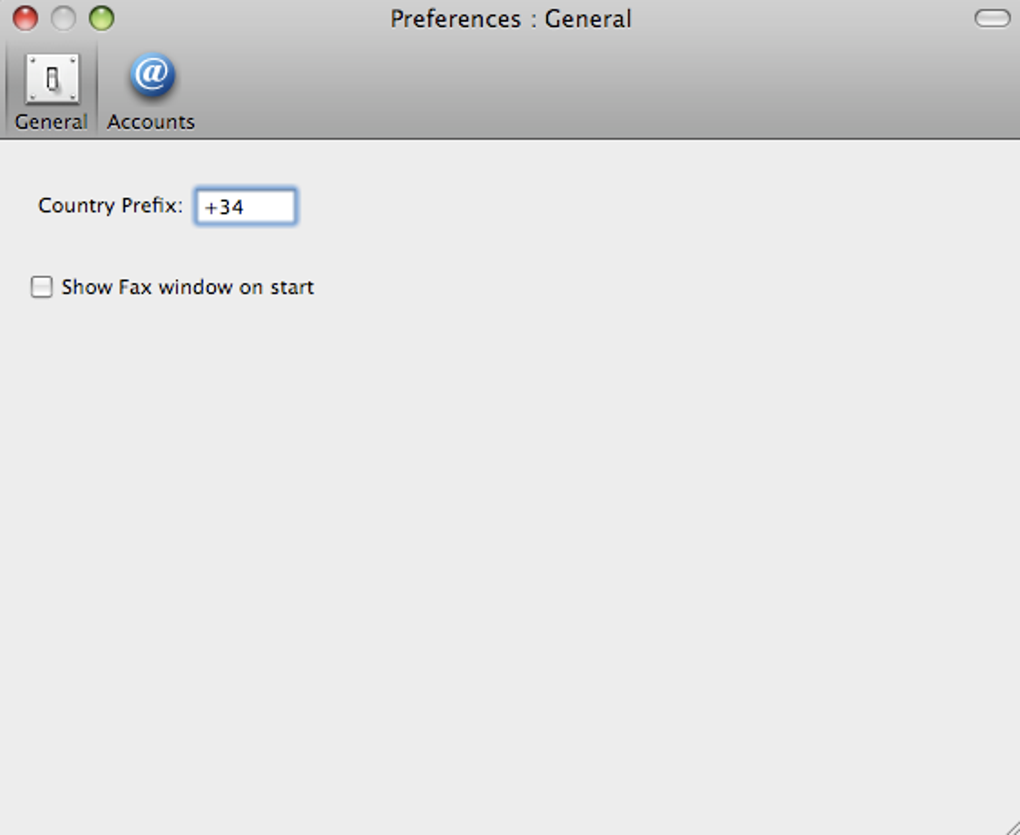
Once launched, you’ll be greeted by the General tab. Here you enter the country prefix (e.g., +1 for the United States, +44 for the United Kingdom) and the recipient’s fax number. You can also attach files by dragging them into the attachment area or by clicking the “Add Document” button. Fossi automatically converts supported file types into a fax‑compatible format, so you never have to worry about page‑size mismatches.
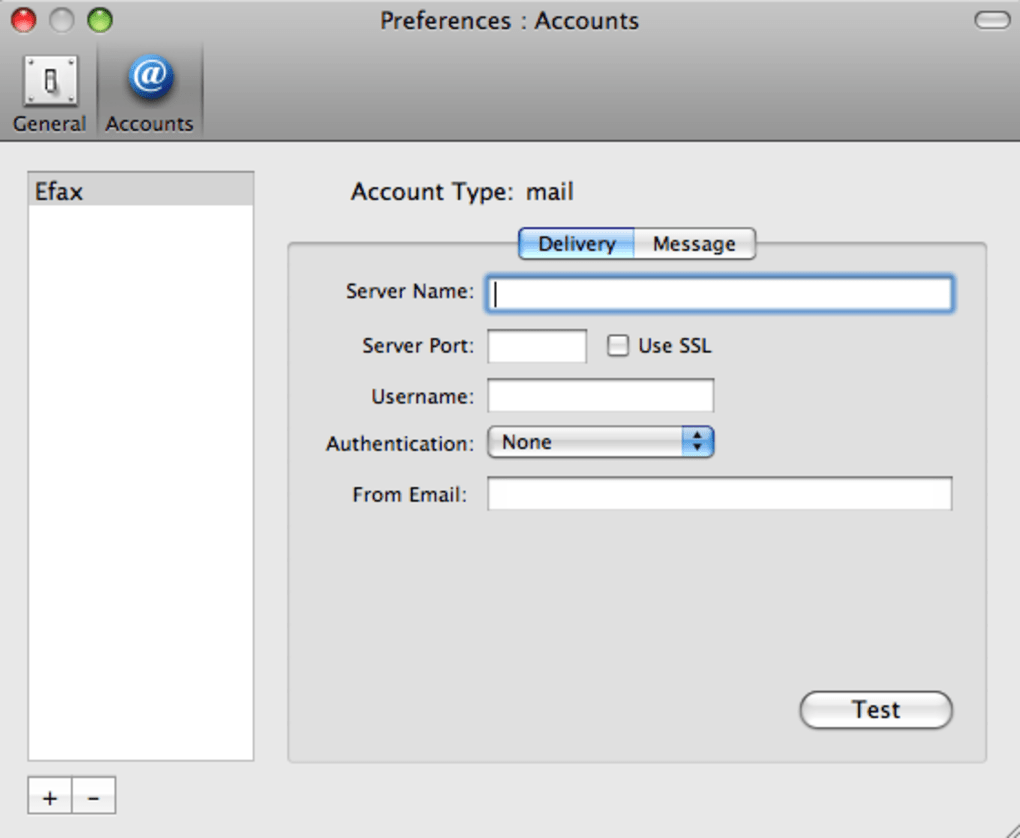
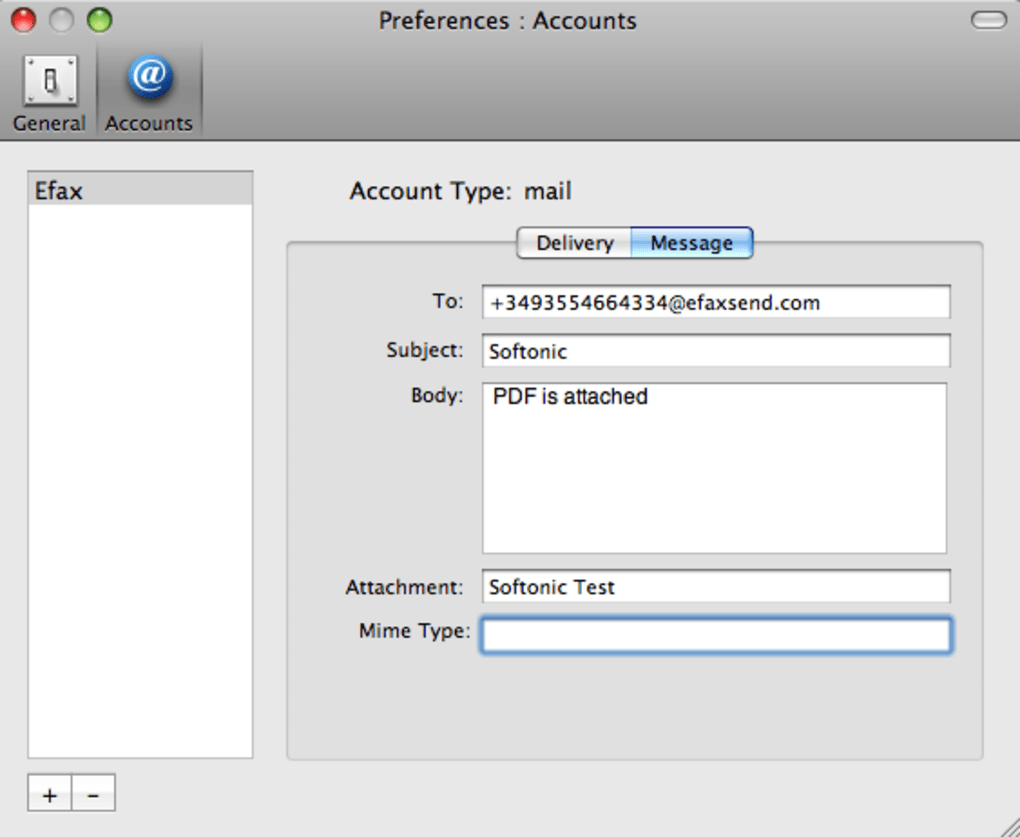
The next step is to configure an online fax account. Switch to the Accounts tab and click the plus (+) icon. A dialog appears where you can select your preferred provider from a drop‑down list, then enter the API key or username/password that your service gave you. Fossi stores these credentials securely in the macOS Keychain, meaning they are encrypted and only accessible by the application. You can add multiple accounts and toggle between them with a simple click, making it easy to use a personal account for private faxes and a business account for work‑related documents.
If you own a legacy modem, the setup is equally straightforward. In the Accounts tab, select “Use internal modem” and choose the appropriate serial port (usually /dev/cu.modem). Fossi will then communicate directly with the modem hardware, allowing you to send faxes without an internet connection. This mode is especially useful in remote locations where broadband isn’t reliable.
Fossi is compatible with macOS 10.8 (Mountain Lion) and later, including the latest Apple Silicon (M1, M2, and newer) Macs. The application runs natively on Intel processors and, thanks to Apple’s Rosetta 2 translation layer, works flawlessly on Apple Silicon as well. There are no additional dependencies or external libraries required, and the installer automatically places the app in the correct system folder, making future updates as simple as dragging a new version over the existing one.
After configuration, sending a fax is as simple as pressing the “Send” button. Fossi will display a progress bar, and once the transmission completes, you’ll receive a confirmation dialog with a reference number that you can use for tracking with your online fax provider. If any errors occur (e.g., bad line quality on a modem call), Fossi provides a clear error message and suggestions for troubleshooting, such as checking cable connections or verifying account credentials.
Pros and Cons – A Balanced Look
- Pros
- Completely free, no hidden subscription fees.
- Supports both online fax services and legacy modems.
- Intuitive two‑tab interface makes composing and account management effortless.
- Secure storage of credentials via macOS Keychain.
- Lightweight application that runs on older Mac hardware.
- Regular updates keep it compatible with the latest macOS releases.
- Accepts a wide range of document formats for faxing.
- Automatic country code handling reduces user error.
- Open‑source‑like transparency and community‑driven feature requests.
- Cons
- Lacks built‑in PDF editing tools; you must prepare documents beforehand.
- Relies on third‑party fax accounts, so you still pay for the actual fax transmission.
- Modem support may require manual configuration for some older hardware.
- No native Windows or Linux version; Mac‑only limits cross‑platform use.
- No built‑in cloud storage; files must be stored locally before faxing.
Frequently Asked Questions & Final Verdict
Can I use Fossi without an online fax account?
Yes. If your Mac still has an internal modem, you can configure Fossi to send faxes directly over the telephone line. Simply select “Use internal modem” in the Accounts tab and choose the appropriate serial port. This mode bypasses any online service and works entirely offline.
Is Fossi really free, or are there hidden costs?
Fossi itself is 100 % free to download and use. The only cost you may incur is the fee charged by the online fax provider you link to (e.g., per‑fax or subscription fees). Fossi does not add any markup or require a premium upgrade.
Which document formats can I fax with Fossi?
Fossi accepts PDF, DOCX, JPEG, PNG, and plain‑text files. When you add a document, the app automatically converts it to a fax‑compatible image (usually TIFF) before sending.
Does Fossi store my fax numbers or documents?
Fossi does not retain any fax numbers or document content after a transmission is complete. All credentials are saved securely in the macOS Keychain, and temporary conversion files are deleted automatically after the fax is sent.
Is Fossi compatible with Apple Silicon Macs?
Yes. Fossi runs natively on Intel‑based Macs and, through Rosetta 2, works flawlessly on Apple Silicon (M1, M2, and later) machines. The developer has tested the latest version on macOS Ventura on both architectures.
In summary, Fossi delivers exactly what its name promises: a free, functional, and secure fax interface for macOS users who need to send documents without paying for a dedicated app. Its dual‑mode capability—online account integration and legacy modem support—covers almost every possible faxing scenario on a Mac. While you still need to pay the underlying fax service for each transmission, the fact that the interface itself costs nothing makes Fossi a compelling choice for freelancers, small businesses, and anyone with occasional fax needs. Ready to try it? Download Fossi now and start faxing from your Mac with confidence.







